 RaveMaker
Overview
Bitvise Tunnelier makes it easier to Use Windows Remote Desktop over SSH connection. Connecting to a Secure Shell server as a gateway and not directly to a windows PC, is a safer way to connect and add another layer of encryption. This way you can connect to any client behind a firewall as long as you have port 22 open to your SSH server.
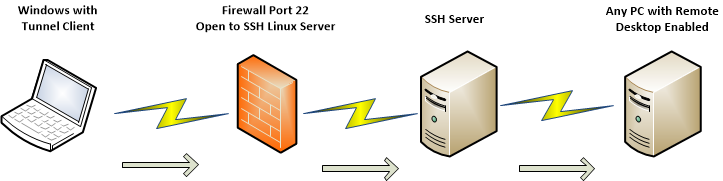
Download and Install Tunnelier
- Tunnelier installation: Bitvise SSH Client installer
- Install and run
- Switch to the Login Tab
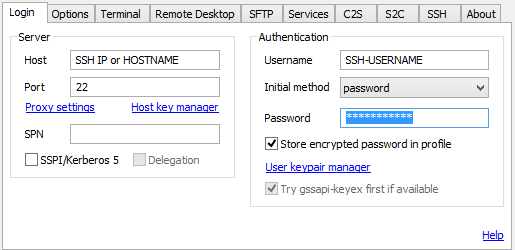
- Change the server Host to your Linux or Windows SSH Server IP or Hostname
- Input SSH username and password - You can mark Store encrypted password in profile
- Switch to Options Tab
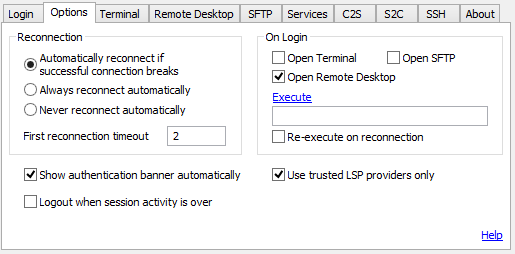
- On Login - Mark only Open Remote Desktop
- Switch to Remote Desktop Tab
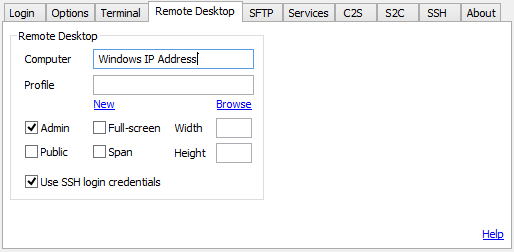
- Input Windows Hostname or IP Address
- You can mark the “Admin” option if you need a console connection
All Done.