 RaveMaker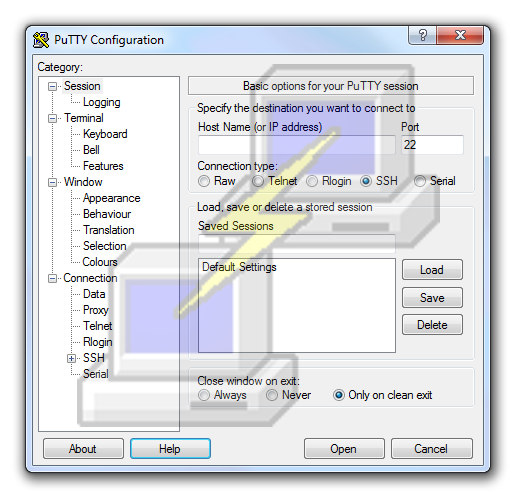
Overview
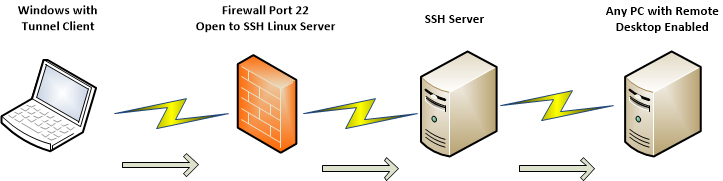
Connecting to a SSH server as a gateway and not directly to a Remote Desktop PC is a safer way to connect and add another layer of encryption without losing performance, this way you can connect to any client behind a firewall as long as you have port 22 open to your SSH server. Using Windows Remote Desktop over SSH connection is a very simple task to perform using PuTTY.
Download and Install
- Download and run the PuTTY.exe file: PuTTY
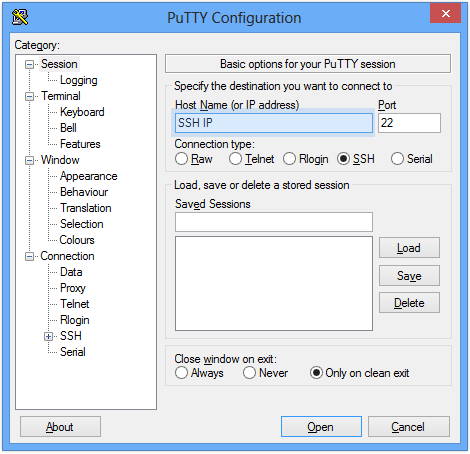
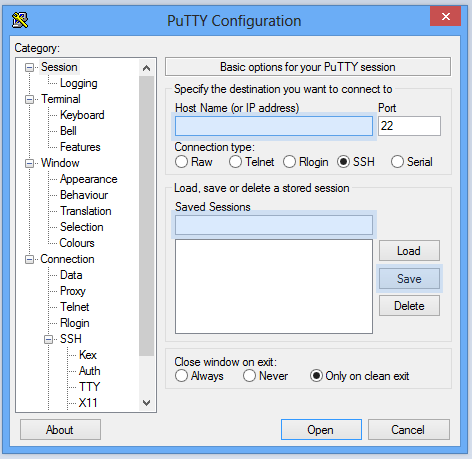
Configure Hostname
- Input a Hostname or IP address for the server (and a port if different from default 22): Category–>Session Set “Host Name (or IP address)” to whatever you need
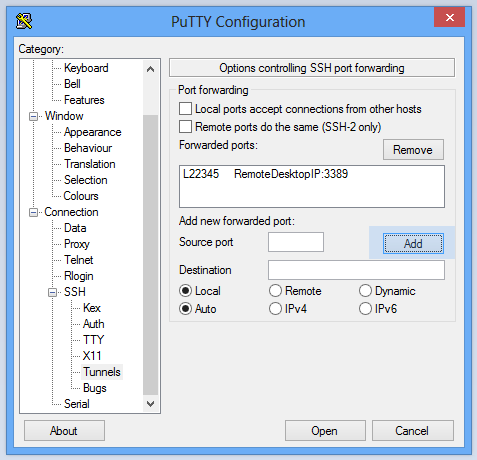
Configure Tunnel
- Now we can configure the Tunnel over the SSH connection by selecting a local port and setting the remote destination: Category–>SSH–>Tunnels Set “Source Port” to a random Source port (make sure it is not being used) Set “Destination” to Remote Desktop IP Address or Hostname and add “:3389” at the end for the default Remote Desktop port
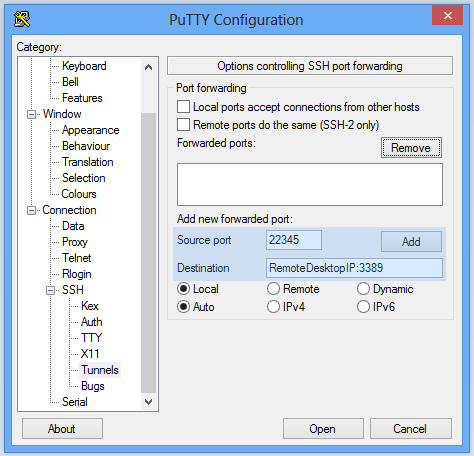 - Don’t forget to click Add!
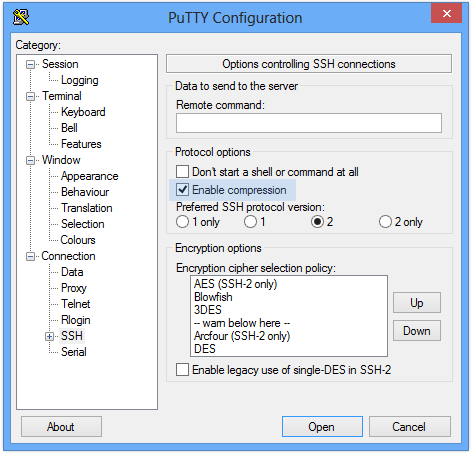
Enable SSH Compression
- You can enable compression for the SSH connection: Category–>SSH Mark “Enable compression”
Save Settings
- Don’t forget to save your settings: Category–>Session Input Session Name under “Saved Sessions” and Click Save
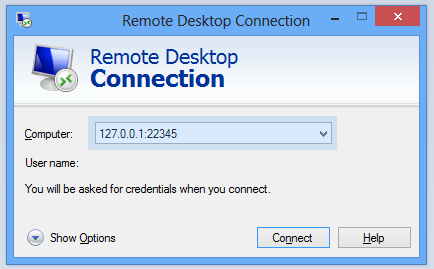
Remote Desktop Client
- Start Remote Desktop Client on windows (Run mstsc.exe): Input 127.0.0.1:22345 (The random port you selected before)
Enjoy