 RaveMaker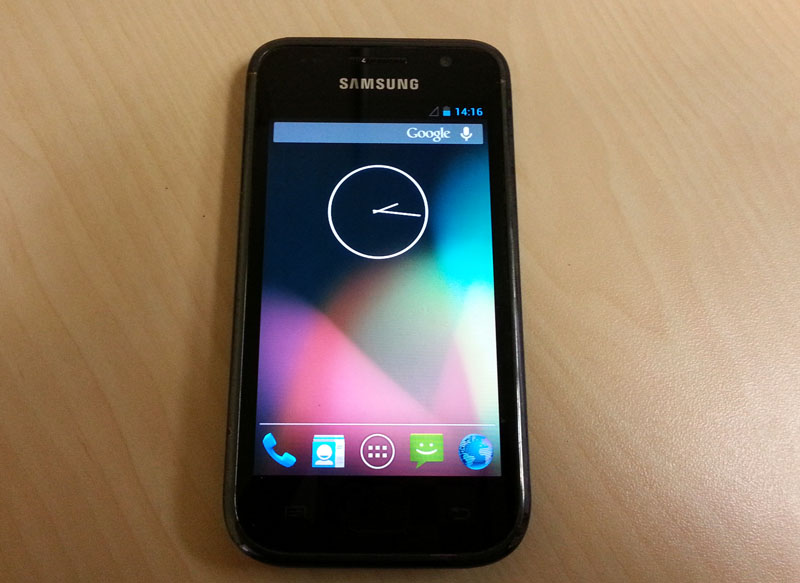
Overview
This tutorial will explain how to Install CM10.1 for Galaxy S i9000 (Android Jelly Beans 4.2.2). Only for Android 2.3.3 and above, Android 2.3.2 and below Should upgrade to 2.3.3-2.3.6 before changing to CM10

Download
- ClockWorkMod 4.3 for Galaxy S1 Only: CF-Root-XX_OXA_JVU_2.3.6-v4.3-CWM3RFS.zip Galaxy S1 Only
- Latest CM10.1 for Galaxy S i9000 nightly builds: i9000: CM10.1 for Galaxy S i9000
- Latest Google Apps: Google Apps for Android
- If you need a different Modem have a look at ROM-Manager for other Modems.
Installation
Step 1 - CM10.1 installation first step is installing a custom recovery
ClockWorkMod (CWM) Recovery Installation Instructions
- Extract CF-Root-XX_OXA_JVU_2.3.6-v4.3-CWM3RFS.zip to any folder
- Go into Setting ->Developers option and enable USB Debugging on your Galaxy S1
- Power off your device
- Boot into Download-Mode using Volume Down + Home + Power
- Hit Volume Up to accept the warning
- Start Odin (1.85)
- Choose CF-Root-XX_OXA_JVU_2.3.6-v4.3-CWM3RFS.tar as PDA (Don’t mark re-partition and flash lock!!!)
- Connect your Phone
- Start flashing
Step 2 - Now that you have CWM installed you can continue to CM10.1 installation
- Copy GApps and CM10.1 ZIPs to your internal SDCard
- Boot into Recovery
- Volume Up + Home + Power: boots your Phone into Recovery Mode.
- Volume up: Highlight up
- Volume down: Highlight down
- Home: select
- Power: back
- Flash CM10.1 zip from internal SD-Card
- Flash GApps zip from internal SD-Card
- Wipe Data / Factory Reset (resolves several issues)
- Reboot
Restoring Apps + Data might cause problems and is not recommended, avoid it if possible!
Upgrading
Upgrading from an earlier version of CyanogenMod 10:
- Copy CM10.1 ZIP to your internal SD-Card
- Boot into Recovery
- Flash CM10.1 zip from internal SD-Card
- Flash CM10.1 GAPPS zip from internal SD-Card
- Reboot