 RaveMaker
Overview
SSH X11 Forwarding Display is a tricky thing to establish on different Windows operating systems. MobaXterm is a free Xserver and tabbed SSH client for Windows Operating Systems which allows you to run native Linux Applications like they are running on your Windows.
Download MobaXterm
MobaXterm is a free Xserver and tabbed SSH client for Windows Operating Systems
How To
Open MobaXterm and Connect to your Linux Desktop/Server:
- Enable the X Server Button on the top toolbar
- Go to Sessions tab on the left sidebar
- Right-Click Saved sessions and create a new session
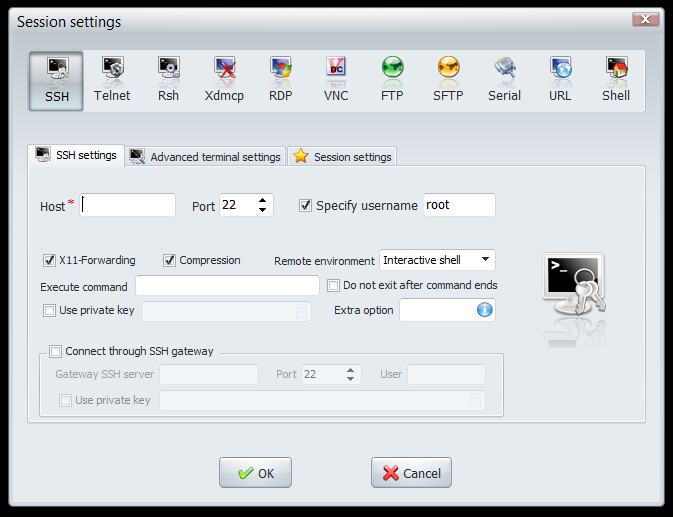
- Click the SSH tab and fill in: Host and username
- Make sure X11-Forwarding is Checked and click OK
The next steps are for Linux operating systems without X:
Linux Packages
CentOS/Fedora/RHEL X11 installation
yum install xorg-x11-xauth xorg-x11-fonts-\* xorg-x11-font-utils xorg-x11-fonts-Type1
Debian/Ubuntu X11 installation
apt-get install xauth xfonts-base
``` You can find other fonts by searching for packages containing 'xfonts' in their name.

# SSH X11 Forwarding Display Configuration

Edit '/etc/ssh/sshd\_config' and make sure you have ```text
X11Forwarding yes
D-Bus Error
If you are getting this error: “D-Bus library appears to be incorrectly set up; failed to read machine uuid: Failed to open “/var/lib/dbus/machine-id” Run: ```bash dbus-uuidgen > /var/lib/dbus/machine-id
# Screenshot
**Running xclock on Windows** :) 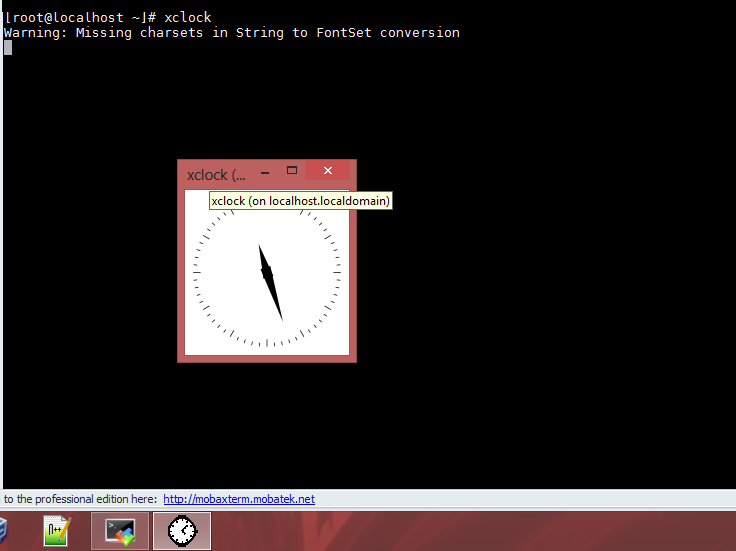
Enjoy!