 RaveMaker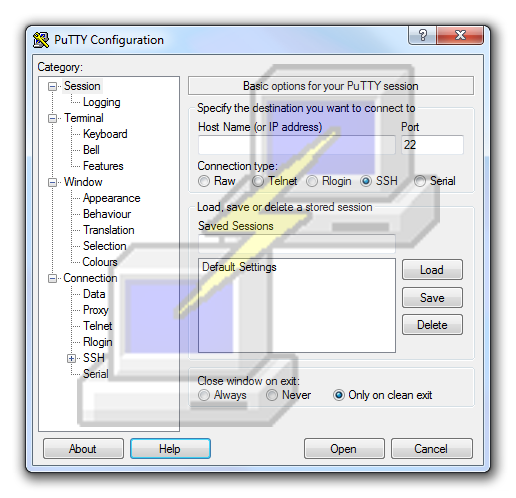
Overview
You can find here a few PuTTY Configuration Tips that will save you a lot of time using SSH. PuTTY is a free and open source terminal emulator application.
Download and Install PuTTY
- Download and run the PuTTY.exe file: PuTTY
PuTTY Configuration Tips
Set Scrollback Lines
- Usually when we use PuTTY there are a lot of lines displayed with every command so we easily reach the number 200 and we can’t scroll back to our previous commands and outputs. We can increase the number of lines to scroll back so we can see previous outputs (only of the current session): Category–>Window Set “Lines of scrollback” to whatever you need

Change Character Set
- PuTTY default charset causes programs with Command Line Interface (CLI) to change their appearance. The closest charset to the “real” CLI interface is UTF-8: Category–>Window–>Translation Set translation to UTF-8

Change Terminal Colors
- PuTTY default colors are a black background with white text. We can choose to use “system colors” and get a white background with black text: Category–>Window–>Colours Mark “Use system colours”

Set Auto-login username
- If you always use the same Username while to log-in to your servers you can set it to be used without typing it every time you reconnect: Category–>Connection–>Data Fill Auto-login username

Save to Default Settings
- Now we can save all these setting to our Default Settings profile: Category–>Session Select Default Settings And Click Save

Enjoy